
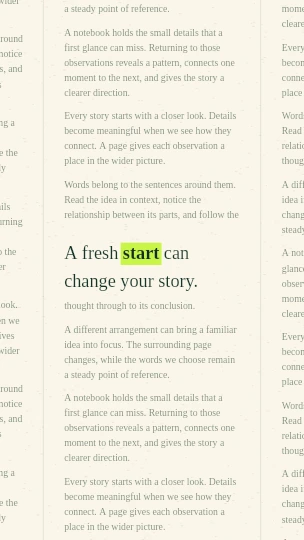
Vertical Hook
9:16 · 8 cuts/s · 4s
Text match cut generator · newspaper-style video
Keep a word fixed as newspaper, book or manuscript pages change. Start with a free template, align real screenshots or download a matching sound rhythm.
All features are free.
Only AI backgrounds use credits.
Free local tools · No account · No watermark
Updating preview…
1080p target · 30 fps · Checking export format…
Updating preview…
Edit your words or choose a look. The preview updates automatically.
Ready-made combinations of style, frame and rhythm. Your words stay by default.
9:16 · 8 cuts/s · 4s
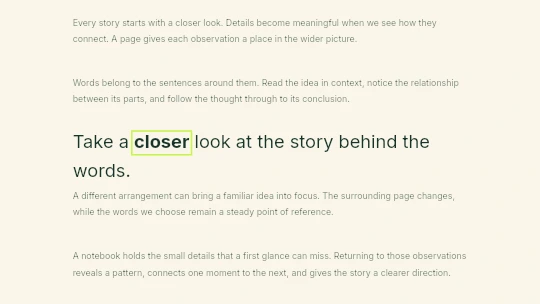
16:9 · 4 cuts/s · 4s
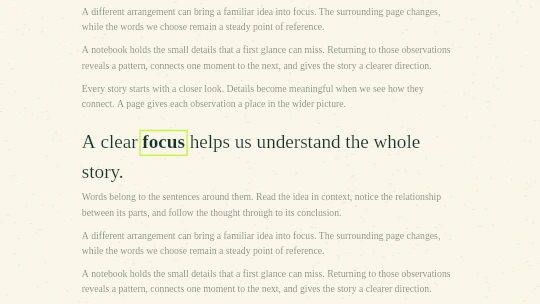
16:9 · 4 cuts/s · 5s
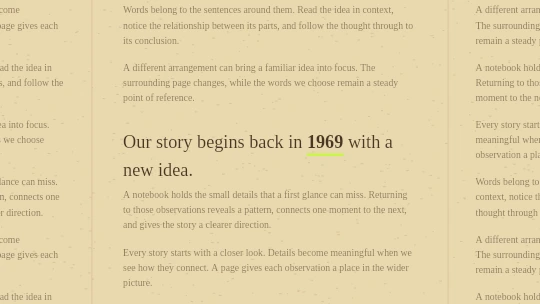
16:9 · 4 cuts/s · 5s
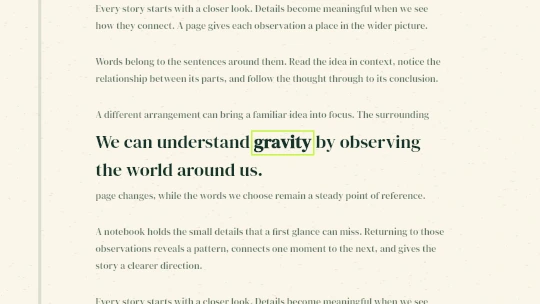
16:9 · 2 cuts/s · 5s
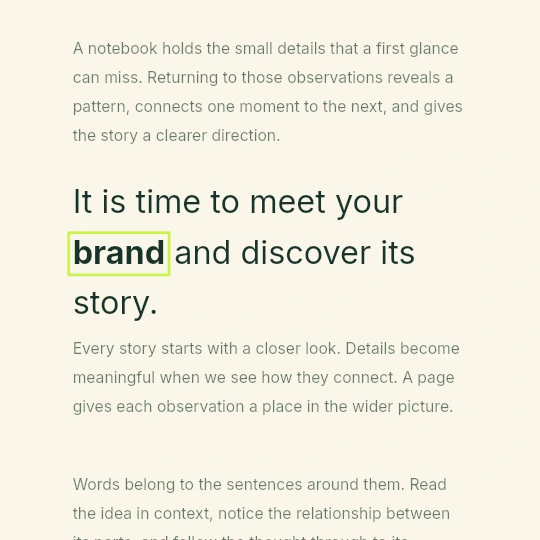
1:1 · 4 cuts/s · 4s
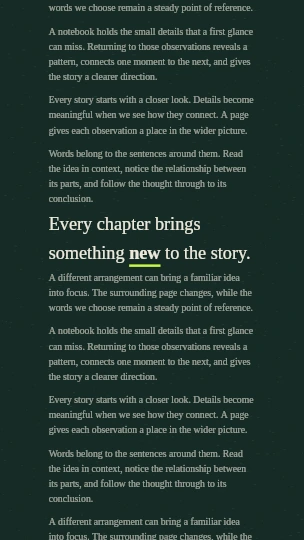
9:16 · 8 cuts/s · 4s
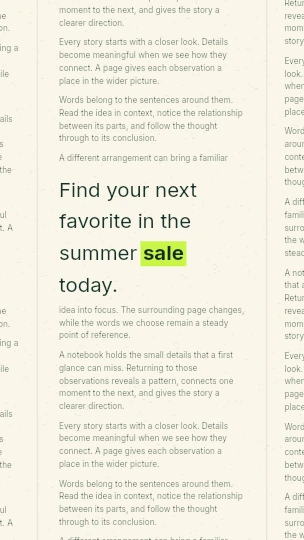
9:16 · 12 cuts/s · 3s
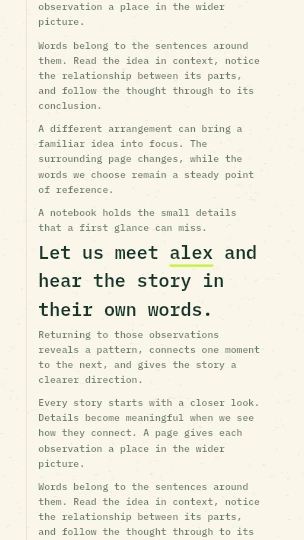
9:16 · 4 cuts/s · 4s
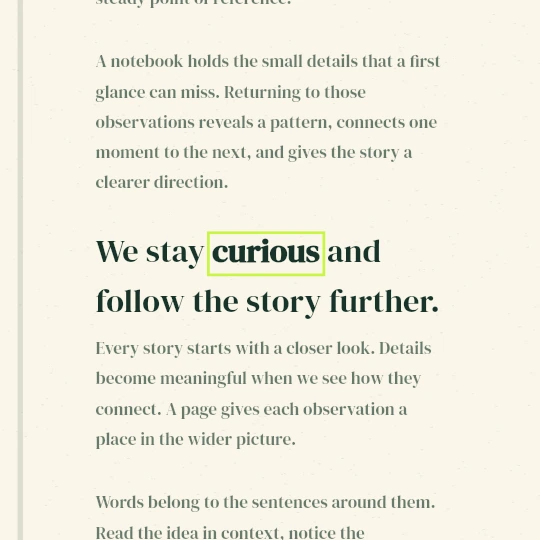
1:1 · 4 cuts/s · 5s
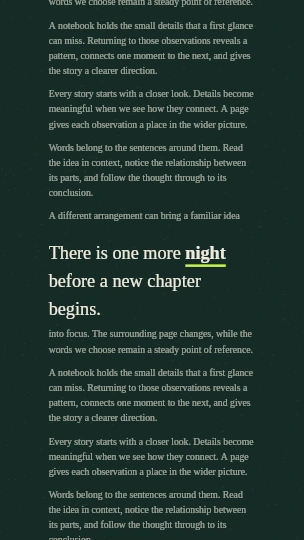
9:16 · 8 cuts/s · 4s
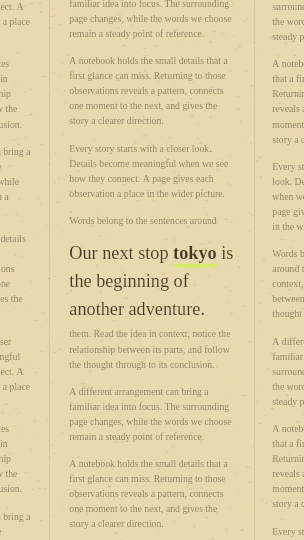
9:16 · 6 cuts/s · 5s
01 · Choose a visual
Create an editorial word anchor across changing, original newspaper-style layouts.
Make this effect →Keep a word fixed across book pages with chapter headings, margins and page numbers.
Make this effect →Cut between monospaced manuscript sheets while one word stays fixed. This is a match cut, not a letter-by-letter typing animation.
Make this effect →Animate a word across simulated generic comment cards. The comments are fictional and are labelled as simulated.
Make this effect →02 · How it works
Start with the free Text & Templates tab in the tool above. Follow these steps to turn your words into a downloaded clip. The free workflow needs no account. AI backgrounds are an optional step for signed-in users with credits.
By Text Match Cut · Updated
In Text & Templates, enter your sentence or short paragraph (up to 500 characters). Click one word under Text to highlight, or click the first and last word of a continuous phrase. Entire phrase selects the complete input.
Read Highlighted text to confirm the selection. Your complete sentence stays visible and wraps inside its article column.
Choose Visual style and select 9:16 for Shorts or Reels, 16:9 for landscape, 1:1 for square or 4:5 for a portrait feed. Every style keeps its own fonts, paper and layout. The preview updates automatically after a short pause.
For ready-made combinations, open Use a scene example below the tool and click Use this example. Your words stay by default. Tick Replace my words with the example text only if you want the sample wording too.
For a custom background, expand Optional AI backgrounds · 10 credits in Text & Templates. Enter a Style description, sign in, then click Generate backgrounds · 10 credits. Each set creates three backgrounds.
AI backgrounds use credits; free paper styles do not. Check the updated preview before exporting. Failed generations do not use credits. Return to free paper switches back to the free styles.
Choose None for silence, or Paper, Tick, Shutter or Soft Tick under Sound effect. Selecting an effect plays a short preview; Preview sound plays it again.
Open Advanced settings for volume, continuous rhythm preview, speed, duration and finer visual controls. The defaults are a good starting point. Audio downloads offers a single WAV hit or a matching rhythm.
Wait until Updating preview disappears, then press Play. Pause or drag Preview timeline to inspect the clip. New layout gives you another arrangement without changing your words.
Changes update the still preview automatically; playback starts only when you press Play. If Reduce motion is enabled, use the still preview and timeline. Advanced settings also contains Article zoom and the optional Bold keyword presentation.
Click Generate video. Keep the tab open while the button shows Generating. When it changes to Download MP4 or Download WEBM, click that same button to save the actual file.
Watch the saved file before using it. If generation fails, open Advanced settings, choose 720p under Quality and try again. The tool reports the actual format supported by your browser.
Import the downloaded video into your editing app and position it on the timeline. If you need separate sound, expand Audio downloads and choose Download matching WAV, or use the dedicated Sound Effects tab.
This is a rendered video, not an editable text project. To change words, return here, wait for the automatic preview and generate again. Free paper templates need no account or credits.
Using real articles instead? Follow the screenshot alignment steps. For audio only, use the sound download steps.
Turn article screenshots into a short video that highlights the same word or phrase in each image.
See screenshot examples →Preview paper, tick and shutter accents. Download one hit or a WAV rhythm that follows your exact cut settings.
Preview and download sounds →Four frames.
9:16, 1:1, 16:9 and 4:5. Choose 1080p or a lighter 720p output.
Your rhythm.
2–10 seconds at 30 fps. Set speed, a known BPM and the final hold.
Video and sound.
MP4 where available, WebM fallback, plus a separate 48 kHz WAV.
Template pages are simulated designs. Screenshot mode uses the documents you provide. Exported clips are finished video assets; assemble your full video in your usual editor.
Format availability depends on your browser. The MDN MediaRecorder documentation explains that recording can still fail when device resources are insufficient, even if a format is supported. See our export troubleshooting guide for next steps.
03 · Your next shot
Make a keyword opening for TikTok, Reels or Shorts, then bring the rendered clip into your edit.
See examples and settings →Introduce a chapter, a year, a person or a key term without interrupting the explanation.
See examples and settings →Reveal a brand, product or offer with reusable typography and a controlled rhythm.
See examples and settings →Emphasize a word from a quote, talk, lyric or podcast and give it a clear visual landing.
See examples and settings →04 · Free tools + optional AI
Make the complete text match cut with the free tools: choose a style, align your screenshots, add sound and download your clip. AI backgrounds are an optional creative extra. A paid plan buys background-generation credits.
| Your workflow | Free local tools | Optional AI backgrounds |
|---|---|---|
| What you create | Paper-style text clips, aligned screenshots and original sound effects | New background artwork from your style description |
| Payment | Free to keep using; no subscription required | Uses AI credits only when you generate backgrounds |
| Account | No account needed for local creation and export | Google sign-in for generation and credit management |
| Video downloads | Free exports without a watermark | Reusing generated backgrounds and exporting again costs no extra credits |
| Choose it when… | You want newspaper, book or manuscript styles, your own sources, or a timed WAV | You want a custom visual background beyond the included paper styles |
Same words, frame and cut rhythm. Compare the free style with backgrounds generated using our AI model. Both clips use the same renderer: 16:9, four seconds and four cuts per second.
Keep the free newspaper treatment, or give the same word reveal a landscape-inspired setting.
Example phrase: “next chapter”. Your own prompt can describe a different visual direction; generated results will vary.
Use the free editorial layout, or add a custom botanical backdrop that fits your launch.
Example phrase: “fresh perspective”. Your own prompt can describe a different visual direction; generated results will vary.
New accounts receive 10 gift credits. One AI generation uses 10 credits and includes three background images; reusing them and exporting again costs no extra credits. Explore AI credit plans →
05 · Pricing at a glance
$0
No subscription
Visual styles, screenshot alignment, video exports and sound downloads.
Use the free tools →$7.99/ month
Billed monthly
200 AI credits each month. Annual billing is also available.
View Starter options →$12.99/ month
Billed monthly
500 AI credits each month. Annual billing is also available.
View Pro options →Prefer a one-time purchase? Credit Pack is $5.99 for 100 credits. Compare monthly, annual and one-time options →
06 · FAQ
Choose Text Match Cut, enter the brand name under Sentence or paragraph, and select Entire phrase. Pick a visual style and choose 9:16 for a vertical intro. Press Play to check it, then Generate video and download the clip. See examples
Select the topic name under Text to highlight. For a phrase, click its first and last words. Choose Article close-up under Advanced settings to keep the surrounding sentence visible, or choose Bold keyword for a large standalone title.
Paste your article into Surrounding text under Advanced settings. Enter the matching sentence in Sentence or paragraph and select the words to highlight. The highlight appears in the original paragraph when the wording matches.
Use Screenshot Match Cut to align a recurring word across your source images. Upload the screenshots and confirm where the word appears in each one before exporting. Open Screenshot Match Cut
The downloaded video contains the rendered text. To revise the wording, update it in Text Match Cut, generate another clip and replace the old file in your editor.
The export panel shows the format your browser can encode. If the video is silent, download the matching WAV and align it with the clip in your editor.
Built-in styles and local video exports are free without an account. Credits apply to optional AI background generation.
AI generates background artwork from your style description. This app adds your selected words and creates the match-cut animation separately. Keep your phrase in Sentence or paragraph and describe the artwork in the AI style field.
Optional AI backgrounds use the Z-Image model (API identifier: z-image) through KIE at kie.ai. Your style description and aspect ratio are sent to KIE to generate a set of 3 backgrounds for 10 credits. Failed generations do not cost credits. Your video text and animation are rendered separately in your browser. Avoid sensitive personal information in your description, and see our Privacy Policy for data handling details.
The editor builds a new preview after each edit. Wait for the preview to say Ready. If it asks you to check your input, enter valid text and select a word or phrase. If the preview fails, choose Retry preview.
Check whether Reduced motion is enabled. You can drag the Preview timeline to inspect the frames, or turn Reduced motion off in Advanced settings to play the animation.