
Start with a short, readable phrase
A text match cut keeps one word fixed while its surrounding layouts change. The newspaper clipping effect is the paper-style version of that transition. Use it to emphasize an idea between shots, not to display a whole paragraph.
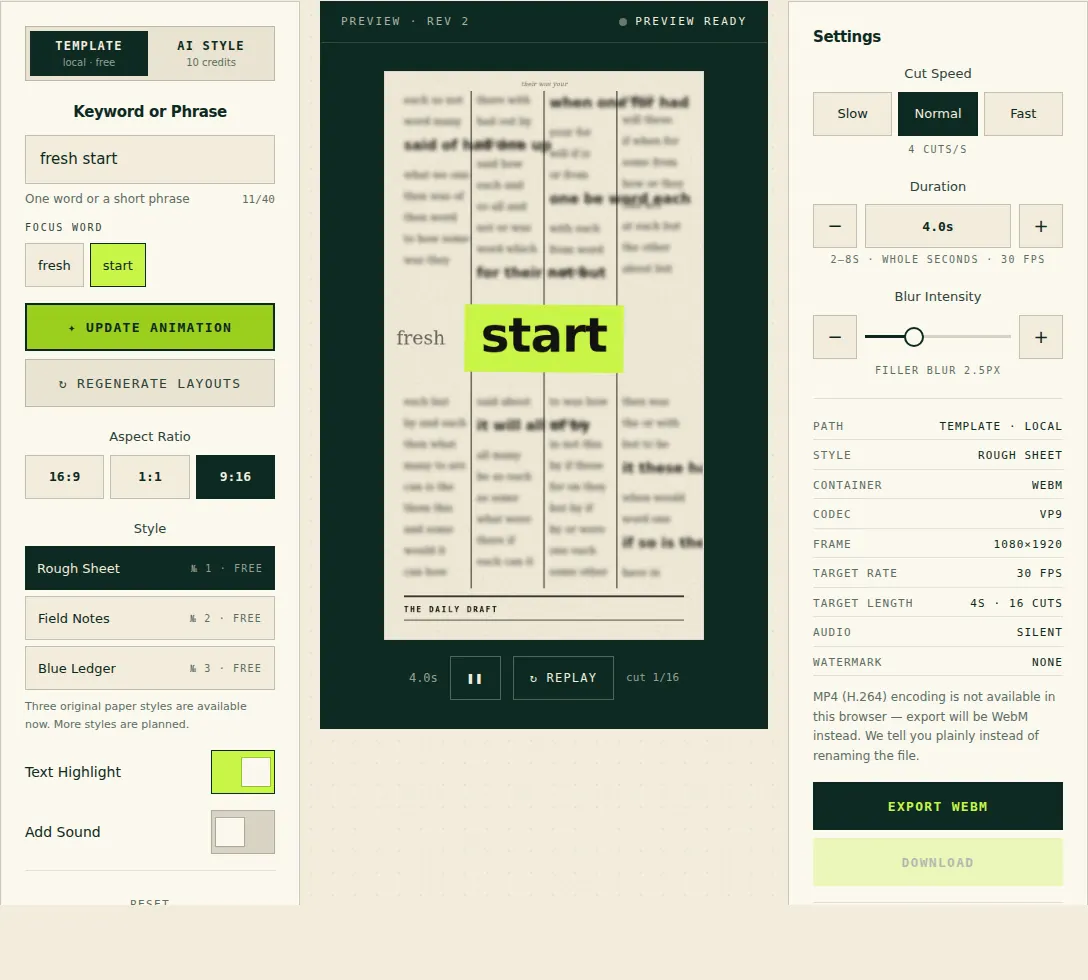
In the generator, enter up to 8 words and 40 characters. For a first attempt, use “fresh start” and select “start” as the focus word. Short words leave more space for the changing layouts. Check spelling before recording the export.
Load this starting example →Set the frame and rhythm
- Select the focus word in the tool. It becomes the visual anchor across the changing paper layouts.
- Start with Rough Sheet, or try Field Notes or Blue Ledger for a different simulated paper design.
- Use 9:16 for a portrait clip, 16:9 for a wide edit or 1:1 for a square layout. Choose the frame that matches your editing project.
- Start with 4 cuts per second and a 4-second clip. Try 2 cuts/s for a calmer result or 8 cuts/s for a faster reveal. Clip lengths range from 2 to 8 seconds.
The faster setting is not automatically better. If the repeated word becomes hard to read, slow down or shorten the phrase. The templates page includes three starting recipes with different uses.
Preview before you export
Run the preview and check that the intended word stays readable. Adjust the background, highlight and blur to suit the surrounding footage. A new text, style or timing choice makes the previous preview stale; preview the changed settings again before exporting.
The preview and export use the same settings snapshot. The actual recording still depends on browser encoding, fonts and device resources, so watch the downloaded file as well.
Export and check the file
Use the export control, wait until the file is ready, then choose Download. The output targets 1080p at 30 fps. The spec panel shows the browser-supported container before you commit: MP4 where supported, otherwise WebM. This is a rendered video clip, not an editable CapCut or After Effects project.
If encoding fails, no completed file is offered as a success. Retry a shorter clip and close memory-heavy tabs. Keep the browser tab active during recording. For editor import problems, follow the CapCut format checklist.
Finish the transition in your editor
Place the downloaded clip where a keyword needs emphasis, then trim its start to your chosen audio beat. Use Add Sound for locally synthesized cut clicks, or leave it off for a silent clip and add music or paper sounds in your editing application. Inspect the first and last frames, text readability and final crop before publishing.
Free paper templates require no account and have no watermark. AI backgrounds are an optional separate workflow: Z-Image through KIE generates background art using credits, while the app places the text over it. Simulated paper is a visual effect, not evidence of genuine newspaper coverage.