Choose Screenshot Match Cut in the tool above. Start with at least two screenshots that contain the same phrase. For multiple highlights on one image, use Text Highlight.
- 01
Upload at least two screenshots
Choose Screenshot Match Cut and select Upload screenshots. For example, upload three images that each contain “It’s a good day”. You can select several files together or add them one at a time.
Check that each file appears as a numbered thumbnail. You can upload up to 20 PNG, JPEG or WebP files, up to 10 MB each and 100 MB total. Keep the originals because refreshing clears the editor.
- 02
Find the shared phrase
Enter the phrase under Word or phrase to find and select Find words in screenshots. Once English recognition finishes, select thumbnail 1 to see its matches and the larger image.
If the phrase appears several times in one image, choose the occurrence you want to stay fixed.
- 03
Confirm one position per screenshot
Select the correct Confirm match button under image 1. If detection misses the phrase, draw a tight box around the whole phrase on the large image. Next, select thumbnail 2 or use Review screenshot 2, then repeat for every image you are keeping.
Each included thumbnail should say Confirmed. If an image does not contain the phrase, remove or exclude it. Keep two or more confirmed images to make a match cut.
- 04
Replace a screenshot or add a source if needed
To swap a blurry or incorrect screenshot, select its thumbnail and use Replace selected image. The new file takes the same place in the sequence. Find or manually mark the phrase again on the replacement.
For a news or research clip, add a source name, original page URL or publication date to the selected image. Filled details appear at the bottom of that screenshot’s shot. Enable Also list all sources at the end for a combined credits list. You can leave all three fields blank.
- 05
Preview the crop and order
Use the thumbnail arrows to set the order. Select Play or scrub the timeline to inspect each shot. With Align word · retain paper margins, a soft image background fills the space around the aligned screenshot. For an edge-to-edge crop, try Fill frame · crop image edges. The crop may move the phrase to stay within the image.
If you want to preserve more of the screenshot, use the margin option and try a small change to Vertical adjustment or a different output ratio. Edits apply to the selected image.
- 06
Generate and download
Once the preview is ready, select Generate video. Keep the tab open, then select Download MP4 or Download WEBM when encoding finishes.
Play the saved file and check the first and last shot. For several highlights on one image, use Text Highlight and draw one box per occurrence.

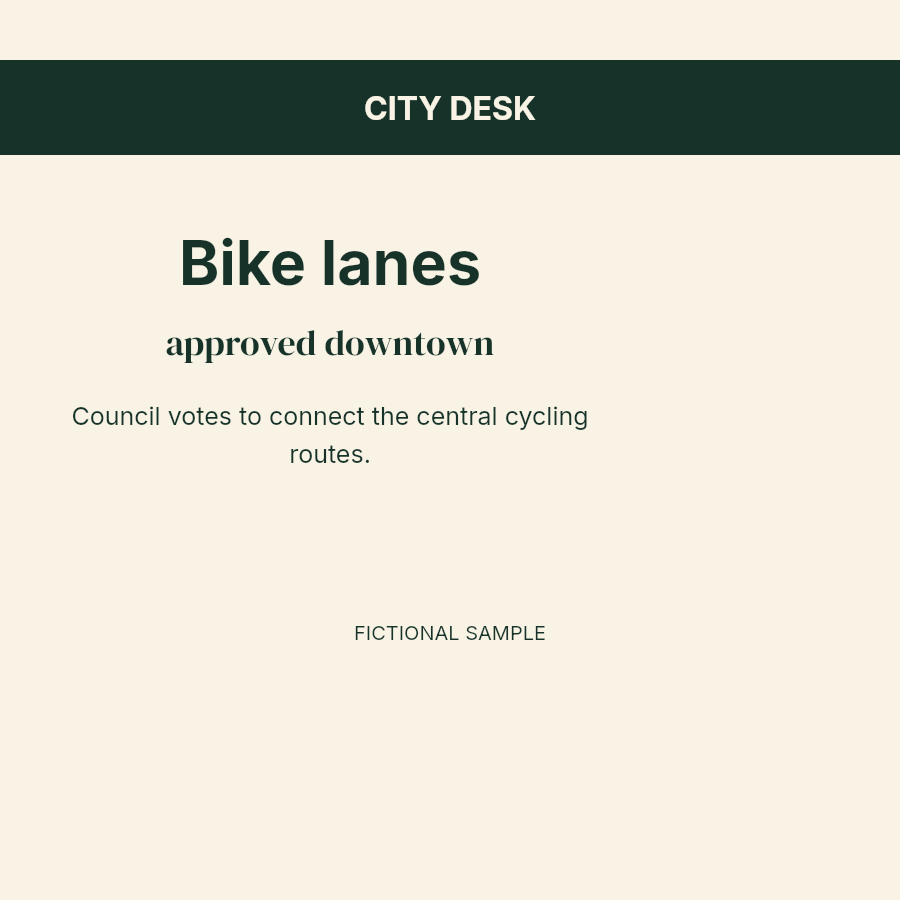 CITY DESK
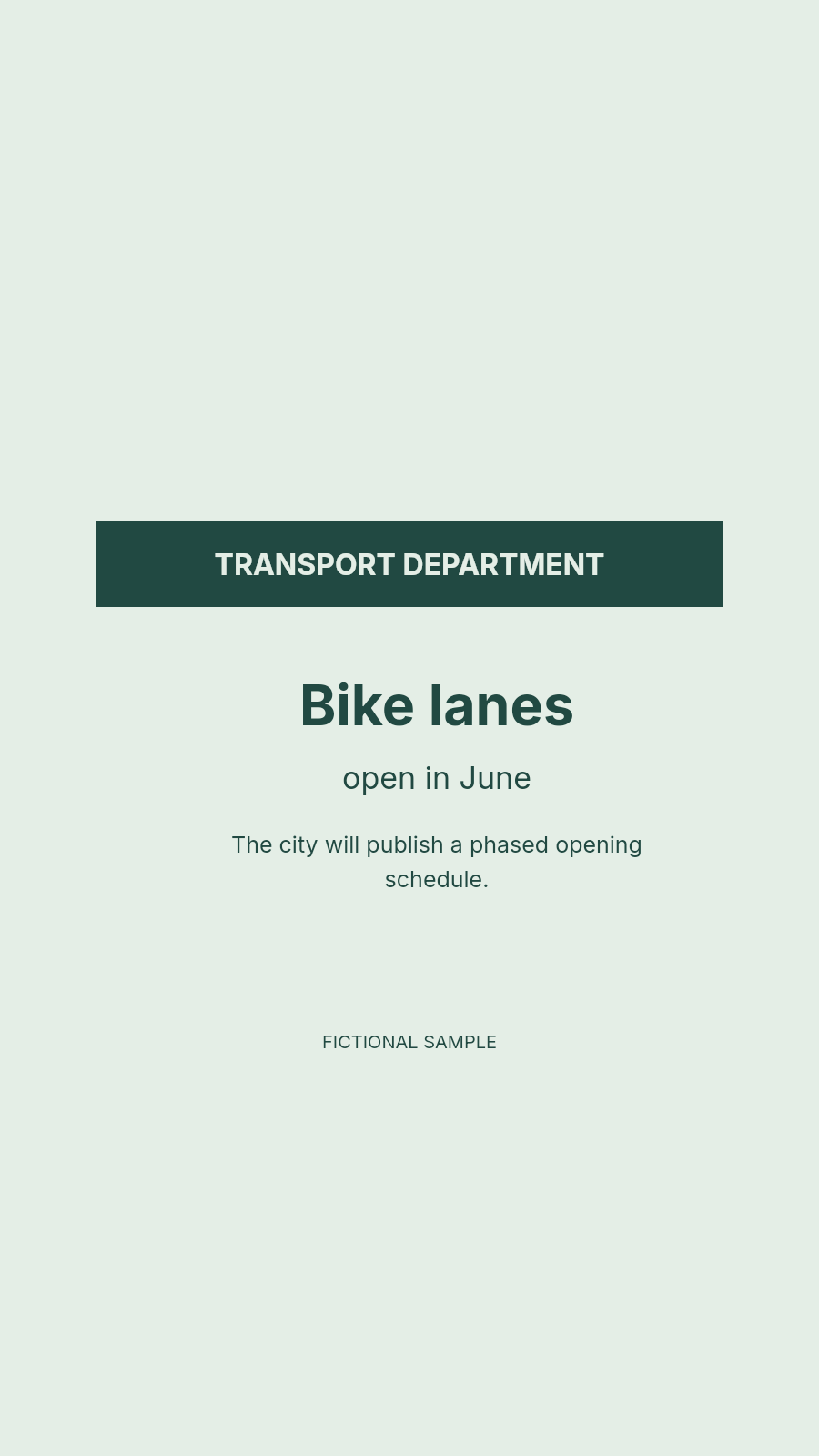 TRANSPORT DEPARTMENT
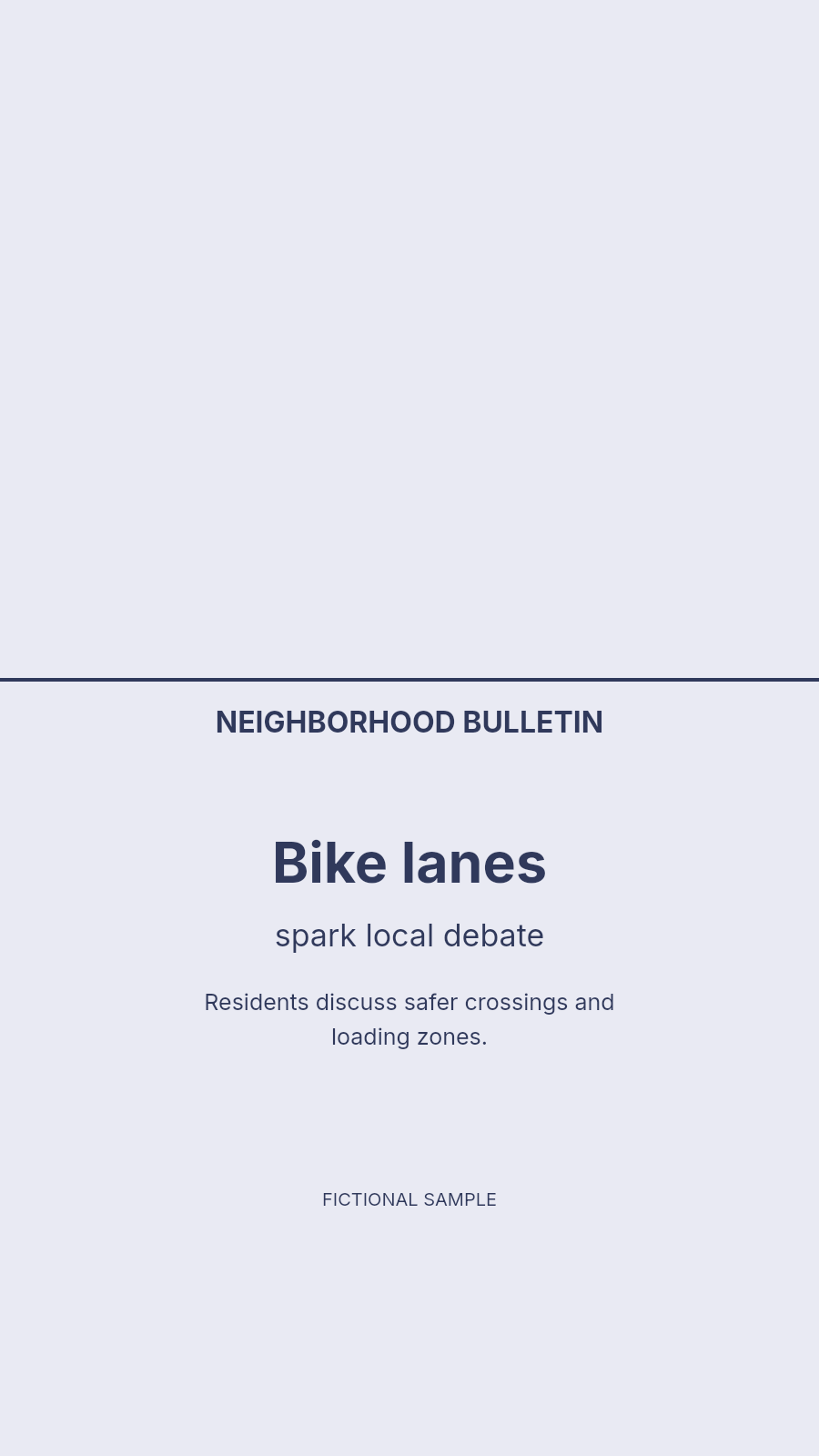 NEIGHBORHOOD BULLETIN
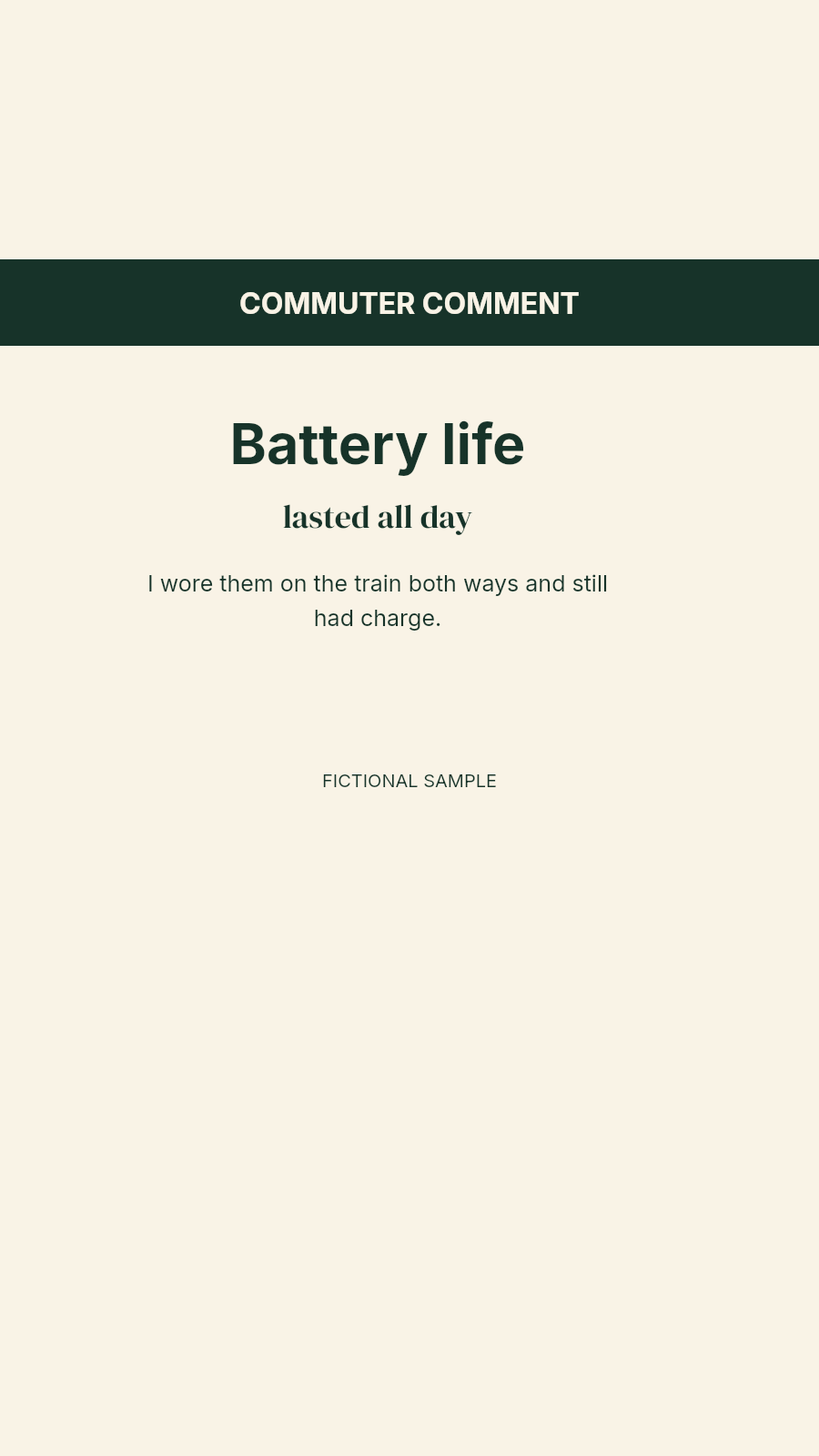 COMMUTER COMMENT
 HEADPHONE REVIEW
 PRODUCT FORUM
 GEOGRAPHY NOTES
 RESEARCH SUMMARY
 CITY DESIGN GUIDE